An AI photoshoot is a set of related generated images directed around a subject, setting, and photographic look. The useful starting point is a clear brief: what needs to appear, what should remain consistent, and what each frame is for.
This guide covers product, fashion, editorial, and lifestyle shoots in Adhalla. For the exact controls and pack options, see the Photoshoot documentation.
1. Decide what the shoot needs to do
A product launch needs different images from a fashion lookbook. Write one sentence describing the audience and use: “A warm, quiet morning skincare campaign for a portrait social carousel.” Then list the frames you need: an establishing scene, a product hero, a detail, and a human moment.
This gives you a way to judge the output. A beautiful macro image is not a substitute for a missing full-length clothing view. Choose the format for the placement before generating; leave room for a crop or text if the final design needs it.
2. Bring references that answer different questions
- Identity: a clear avatar or subject reference.
- Product: accurate shape, label, color, and material.
- Direction: a reference for lighting, composition, or atmosphere.
In Photoshoot you can choose saved avatars and products and add reference assets. Explain what a reference contributes. A mood image should guide the light; it should not accidentally become a replacement for your product. Remove contradictory references and avoid tiny, blurry, or heavily cropped identity images.
3. Choose a photographic direction
Use the style, environment, and camera-look controls to make one coherent choice. Fashion Editorial in a city street with an Analog Film look is a different brief from a clean product study in a white studio. Neither is inherently better; the right choice serves the subject.
A useful brief names the subject, setting, lighting intent, action, and important constraints. For example:
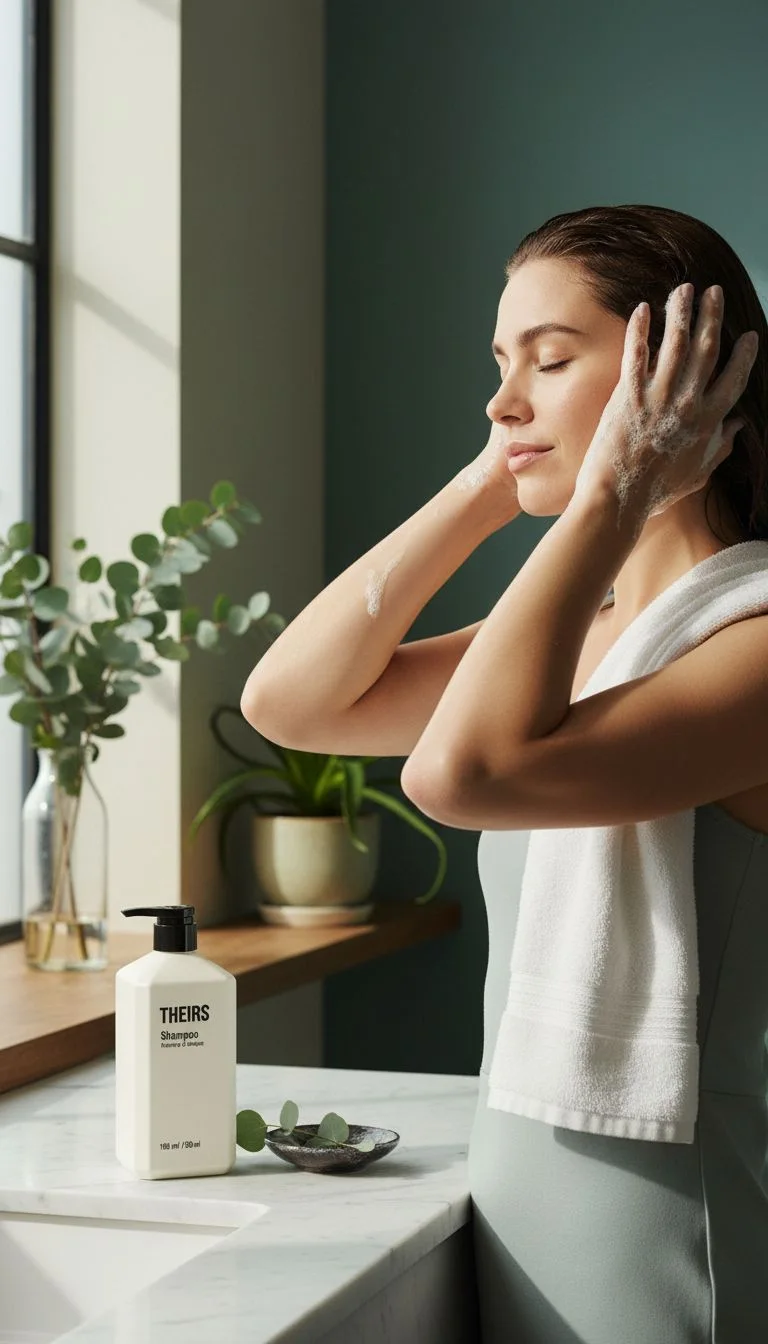
A quiet bathroom ritual with the referenced shampoo bottle on the counter. Soft window light from the left, muted green surroundings, calm body language, realistic materials. Keep the packaging readable and leave breathing room around the product.
Treat that as direction, not a guarantee that every label or hand will render correctly.
4. Set the size and freedom of the shoot
Adhalla offers new-shoot packs of 3, 6, or 12 images. Use a smaller pack when testing an uncertain direction. Choose Controlled or Balanced variation when continuity is central; Bold or Wild gives composition more room to move. Review the displayed credit charge before you generate.
The master image appears first and variations follow in the background. Compare the set against the brief rather than selecting the most dramatic image in isolation.
5. Review the set at three scales
- Thumbnail view: does the set belong together, with a useful mix of wide, medium, and detail frames?
- Full frame: are the pose, perspective, lighting, and crop plausible?
- Close detail: check faces, hands, logos, garment construction, product geometry, shadows, and reflections against the references.
Reject attractive frames that misrepresent the product. AI can invent an unseen seam or alter printed text. For listings where exact construction is essential, retain verified photography of the real item.
6. Extend what works
Use a successful image as the base for additional angles, or continue a previous shoot. Keep the same essential references and change one major variable at a time. Save or download the completed frames you need; check image status before starting a repeat generation.
Which mode should you use?
Choose Photoshoot for a photographic set. Use Poster Ads for designed layouts with advertising typography, or Vibe Studio for work organized around a reusable aesthetic and animation. An AI photoshoot itself produces still images.